How to Record a TikTok Live Stream ? The Complete Guide
 Elsie
TikTok Live has no replay button. Once a broadcast ends, it’s gone there’s no “watch again” option, no saved copy in the app, nothing. If you want to keep a live stream, you have to record it while it’s happening.
This guide walks through exactly how to do that, what actually gets saved, and how to handle it if something doesn’t work the first time.
How to Record a TikTok Live Stream, Step by Step ?
Recording a TikTok Live works differently from downloading a regular video, because there’s no finished file sitting on a server waiting to be fetched the stream has to be captured while it’s on air.
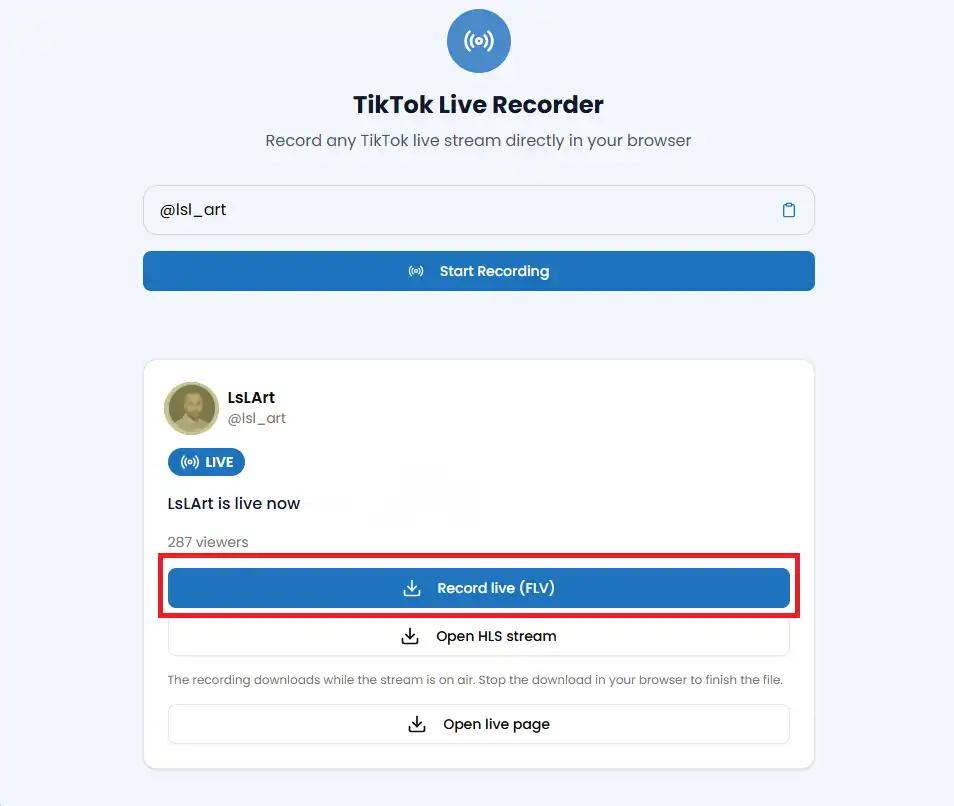
- Open our TikTok Live Recorder and enter the creator’s @username.
- Press Start Recording. The tool checks whether the account is live right now.
- If they are, you’ll see their profile with a LIVE badge and the current viewer count.
- Press Record live (FLV) to begin capturing the stream.
- The recording downloads in your browser while the stream is on air. To finish the file, simply stop the download once you’re done the recording is saved up to that point.
A few things worth knowing before you start: recording only captures video and audio from the moment you press the button, not from the beginning of the broadcast, so start as early as you can once you know someone is live. And like every download on the site, this only works for public accounts private broadcasts can’t be accessed.
Will the Creator Know You’re Recording Their TikTok Live ?
The recording itself isn’t tied to your TikTok account. Our tool doesn’t log in to TikTok on your behalf, so there’s no notification sent to the creator saying “someone recorded this stream” TikTok doesn’t have a feature like that for anyone watching a live broadcast, recording or not.
That said, it’s worth separating two different things:
- Recording the stream through the tool is not linked to your identity and generates no alert.
- Watching the live inside the TikTok app works the same as it always does your username may appear in the viewer list to the host, exactly as it would if you were simply watching without recording anything.
In short: the act of recording adds no extra visibility beyond normal viewing. If you’re already watching the stream in the app while recording it elsewhere, the same viewing rules apply as usual.
What File Format Does a TikTok Live Recording Save As ?
Recordings save as FLV files. This is the native format TikTok’s live infrastructure streams in, and the recorder captures it directly rather than converting it on the fly, which keeps the original video and audio quality intact.
A couple of practical notes:
- FLV plays natively in VLC, one of the most common free media players, so you don’t need special software to watch your recording.
- Some devices and apps prefer MP4. If you want to share the file more widely or edit it in a video app that doesn’t support FLV, free converters (like HandBrake or VLC’s own built-in converter) can convert it to MP4 in a few clicks.
- File size scales with stream length. A short recording stays small, while an hour-long live in good quality can reach a few hundred megabytes or more, so make sure you have enough storage before recording something long.
Is It Legal to Record and Save Someone’s TikTok Live ?
Recording a live stream for personal use to rewatch it, reference it later, or keep a moment you don’t want to lose is generally accepted the same way recording any publicly broadcast content is. TikTok’s own Terms of Service govern how content on the platform can be used, and they restrict activities like commercial redistribution, reposting someone else’s content as your own, or using recordings to harass or infringe on someone’s rights.
The safest way to think about it:
- Personal archiving of a public live stream is low-risk and common.
- Reposting, monetizing, or redistributing someone else’s recorded live without permission can violate copyright and TikTok’s platform rules.
- Private or restricted streams are off-limits entirely if you can’t access it publicly, you shouldn’t try to record it through any workaround.
This isn’t legal advice, and copyright rules vary by country, so if you plan to use a recording for anything beyond personal viewing, it’s worth getting the creator’s permission first and always crediting them.
TikTok Live Won’t Record ? Common Problems and Fixes
If recording doesn’t start, the cause is almost always one of these:
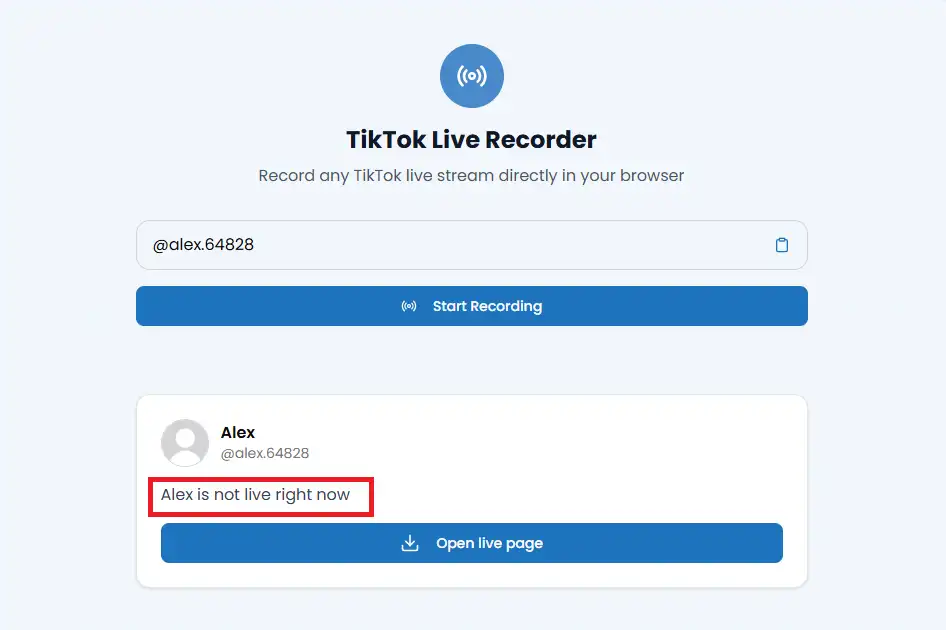
“[Username] is not live right now.”
This is the most common message you’ll see, and it simply means the account isn’t currently broadcasting. TikTok Lives are unscheduled and can start or end at any time, so this isn’t a tool error it’s a timing issue. Check the account again later, or follow them on TikTok so you get notified when they go live.
The username doesn’t load at all.
Double-check the spelling of the @username, and make sure you’re not including extra characters or spaces copied by accident. If the account is private, it won’t be accessible.
The recording stopped partway through.
This is usually a connection issue on your end, or the creator ending the stream unexpectedly. If you have a stable connection and the stream is still active, you can start a new recording immediately.
The stream ended before you could record it.
Unfortunately, there’s no way to recover a finished broadcast recording only works in real time. If you frequently miss the start of streams, it can help to check the account right when you expect them to go live rather than waiting.
If you’re troubleshooting a downloaded video rather than a live recording, our guide on why TikTok downloads sometimes fail covers the most common causes step by step.
Want to save more than just live streams from a creator’s account? Our bulk TikTok downloader lets you grab up to 100 of their regular videos in a single batch, so you can build a complete archive alongside anything you’ve recorded live.