
Why Is TikTok Download Not Working ? 7 Causes and Fast Fixes (2026 Guide)
 Elsie
Elsie
Pasted a TikTok link and nothing happened? You’re not alone. Most TikTok download not working issues come down to a handful of predictable causes, and each one has a quick fix. This guide walks through them in order, from the most common to the least, so you can get back to saving your video in a couple of minutes.
Invalid Link Errors: How to Copy a Working TikTok Link ?
The single most common reason a TikTok download fails is a link that isn’t actually a link. It happens more than you’d think: people copy the video’s caption instead of the URL, or the link gets cut off mid-copy, or they type a username from memory instead of pasting the real address.
Here is the reliable way to copy a link that will actually work:
- Open the video inside the TikTok app (not a screenshot, not a shared image).
- Tap the Share arrow on the right side of the screen.
- From the share menu, tap Copy Link.
- Look for the confirmation message (“Link copied”) before you move on.
- Paste it immediately into the downloader, without editing or retyping any part of it.
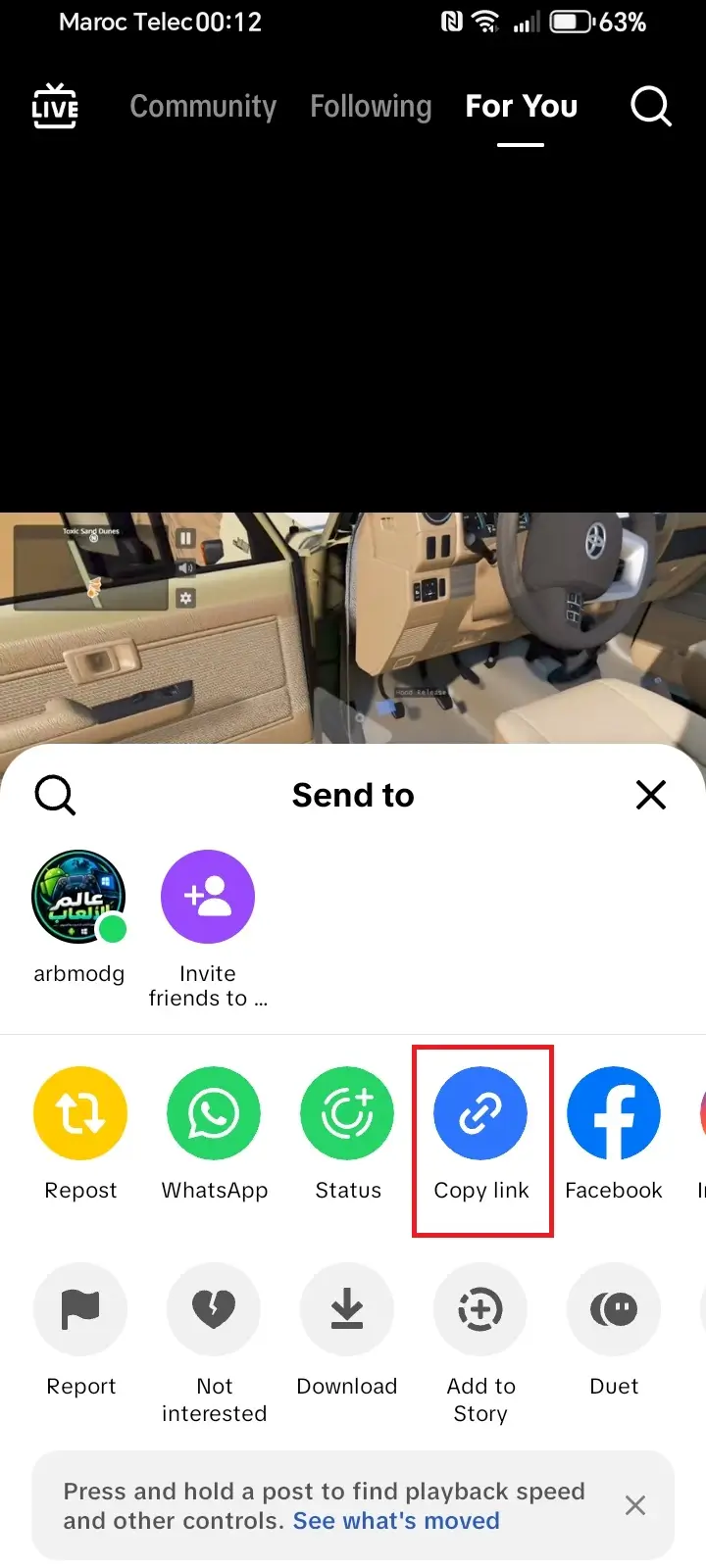
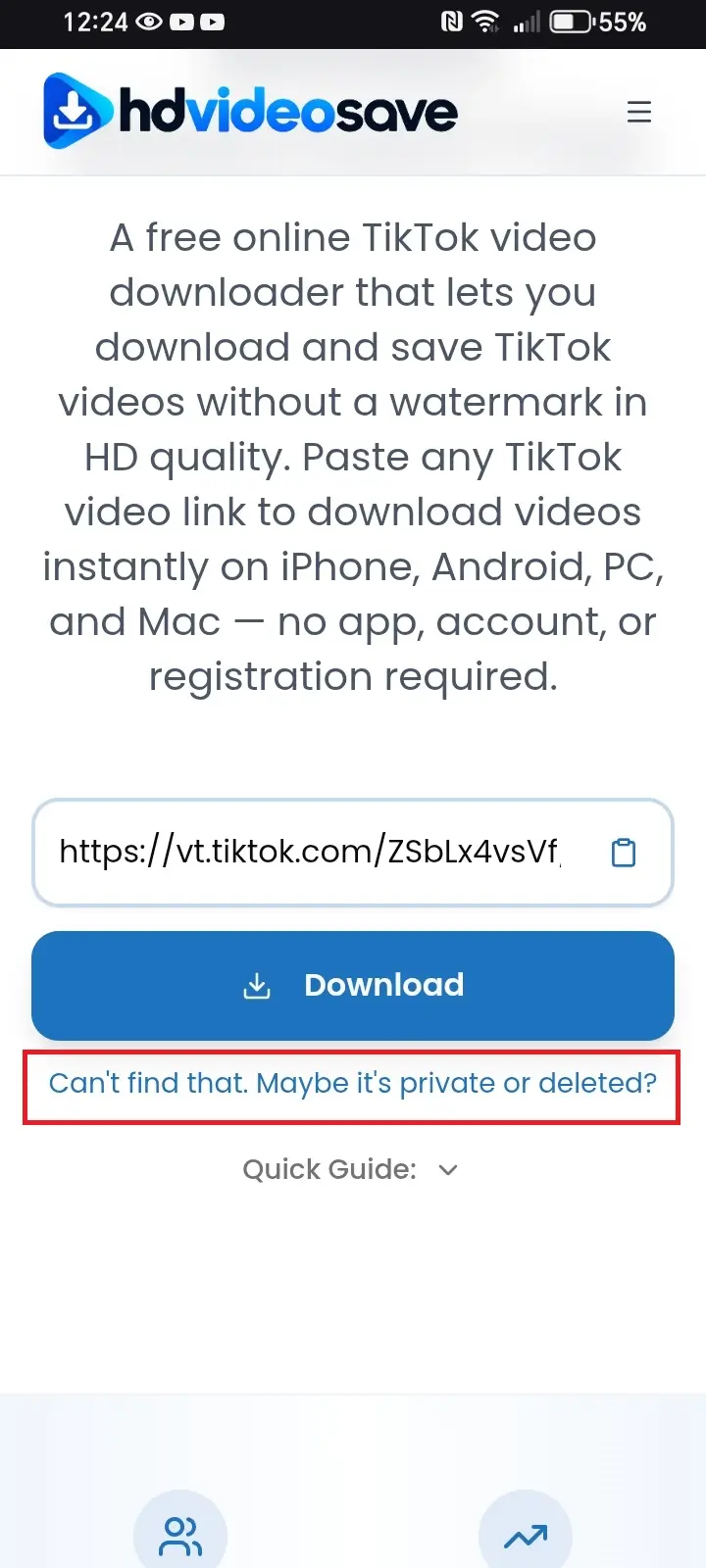
A working TikTok link always contains tiktok.com followed by /@username/video/ and a long number, or a short link starting with vm.tiktok.com or vt.tiktok.com. If what you pasted doesn’t look like that, go back to TikTok and copy it again rather than trying to fix the link by hand.
The Video Is Private, Deleted, or Region-Restricted
If the link format looks correct but the tool still can’t find the video, the problem usually isn’t the link at all it’s the video itself. Three situations cause this, and none of them can be worked around by any downloader, no matter how it’s advertised:
- The account is private. Only approved followers can view (and therefore download) content from a private account. You can check whether an account is public or private before trying to download from it using a TikTok profile viewer, which shows the account’s status, follower count, and recent public videos at a glance.
- The video was deleted or taken down. If the creator removed it, or TikTok removed it for a policy violation, there is no source left for any tool to pull from.
- It’s restricted in your region. Some videos are only available in certain countries due to licensing or local regulations, and TikTok blocks them everywhere else.
None of these are downloader problems they’re limitations set by TikTok or the creator, and respecting them is part of using any download tool responsibly.
Browser and Connection Issues That Block Downloads
If the link is valid and the video is public, the next place to look is your browser and connection. A handful of browser-side settings quietly interfere with downloads without giving you a clear reason why:
- Ad blockers and privacy extensions. Some ad blockers mistake the download request for a tracking script and silently block it. Try disabling the extension for the downloader’s site, or open the site in a private/incognito window, which usually runs with extensions off.
- Pop-up blocking. If your download opens in a new tab, a strict pop-up blocker can stop it before it starts. Allow pop-ups for the site if your browser prompts you.
- A cached, outdated page. Clearing your browser’s cache and reloading the page solves a surprising number of “it just stopped working” cases.
- An unstable connection. Switch from mobile data to Wi-Fi (or vice versa) if a download seems to hang partway through, and try refreshing the page before retrying.
If you use a VPN, try turning it off temporarily some VPN servers get flagged by TikTok’s own systems, which can prevent a video from loading at all, independent of the downloader you’re using.
The Download Starts But the File Won’t Save (iPhone & Android)
Sometimes the download itself works, but the file seems to vanish, or you can’t find it afterward. This is almost always a device setting rather than a broken tool, and it’s worth checking separately on iPhone and Android.
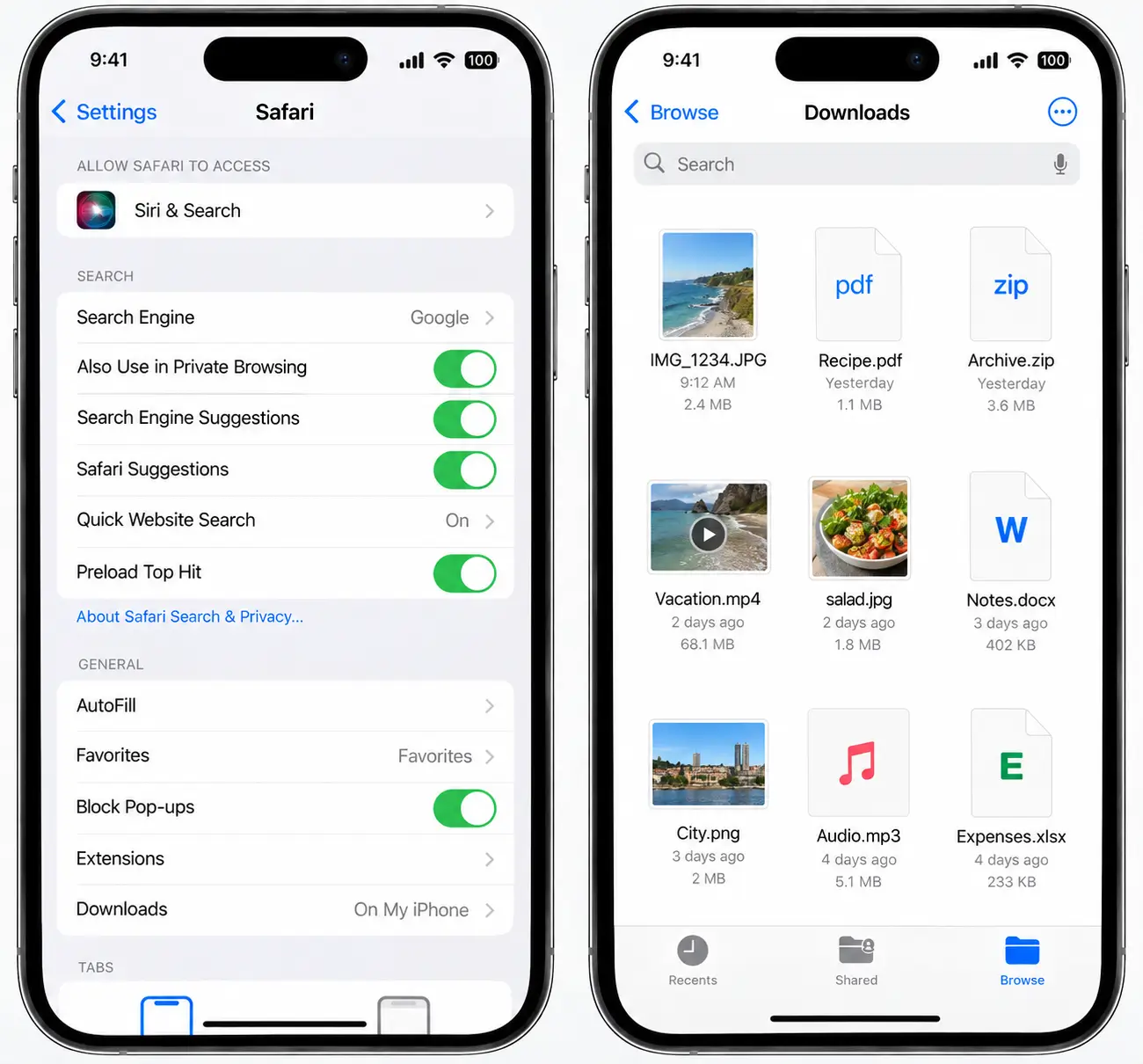
On iPhone:
Safari needs permission to handle downloads, and where it saves them depends on your settings. Open Settings → Safari, and check the Downloads entry it should say On My iPhone (or a specific folder) rather than a cloud location you’re not signed into. Once the download finishes, open the Files app and look under Browse → On My iPhone → Downloads to find it.
On Android:
Downloads normally land in the Downloads folder and are visible from your gallery or file manager app within a few seconds. If nothing appears, check that Chrome (or your browser) has storage permission enabled in your phone’s app settings, and make sure “Ask where to save each file” isn’t set to a location you don’t check.
When Nothing Works: How to Confirm the Video Is Actually Downloadable ?
If you’ve checked the link, confirmed the video is public, ruled out browser issues, and verified your device settings, there’s one last step before giving up: confirm the video is downloadable at all, independent of any tool.
- Open the video directly inside the TikTok app or on tiktok.com in a browser.
- If it plays normally there, the video itself is fine, and the issue is almost certainly on the download side try a different browser, or wait a minute and paste the link again, since TikTok’s servers occasionally rate-limit repeated requests.
- If the video won’t even play on TikTok itself, the problem isn’t the downloader; the content is genuinely unavailable, whether that’s a takedown, a regional block, or the creator restricting it after posting.
This single check resolves most remaining cases, because it tells you immediately whether you’re troubleshooting a tool or troubleshooting content that simply isn’t accessible anymore.
Once you’ve got a working link, downloading is usually instant. Paste it into our TikTok video downloader to save it in HD without a watermark, or if you’re backing up an entire account rather than one clip, our bulk TikTok downloader handles up to 100 videos in a single batch.